Privacy
How to Remove EXIF and GPS Data From Photos on Mac Before Sharing
Every photo from a phone or camera carries hidden metadata — often including the exact GPS coordinates of where it was taken. Before posting a photo online or sending it to someone you do not fully trust, it is worth stripping that data out. Here is how to do it on Mac, without touching the image quality at all.
Step by step
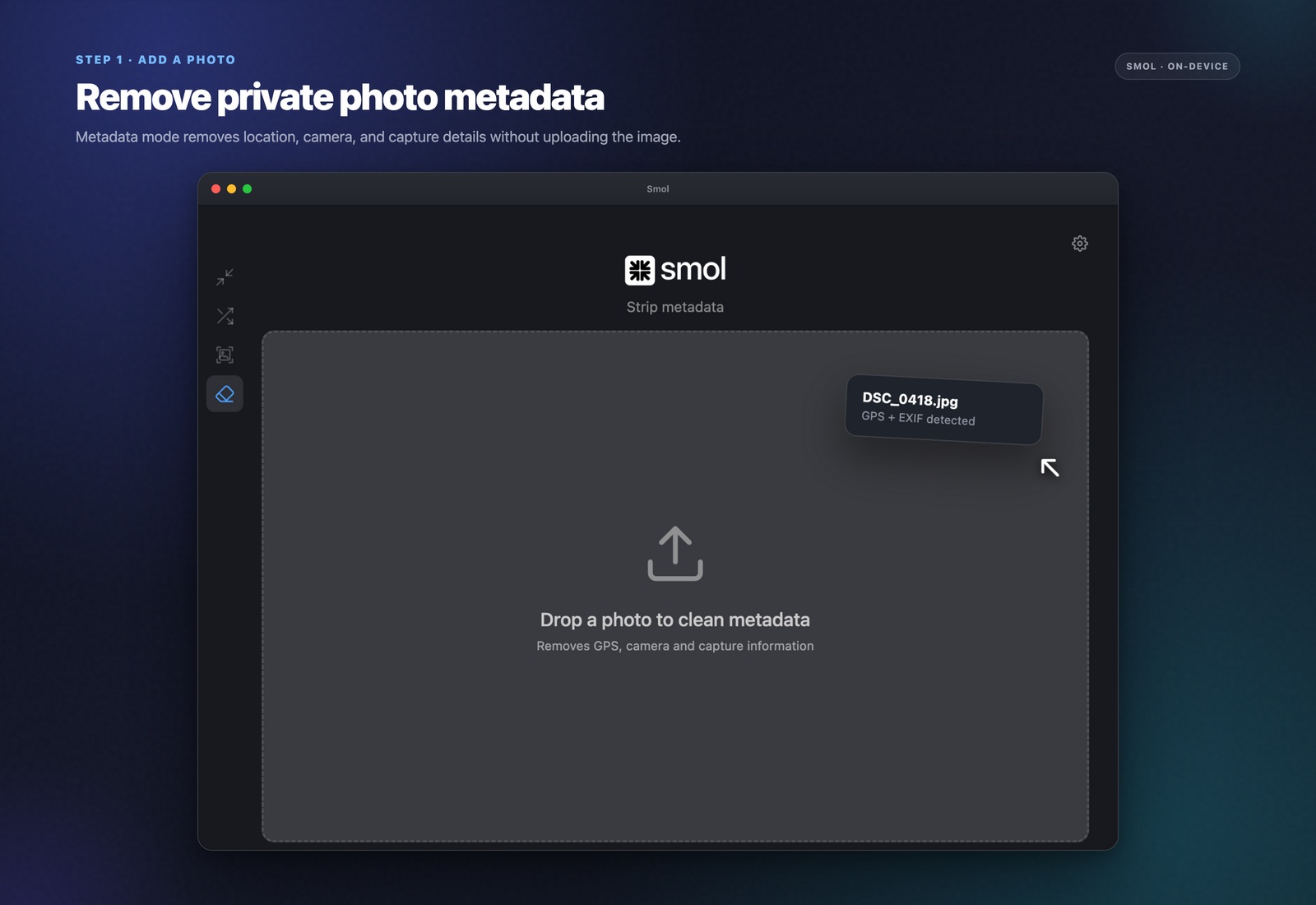
Drop your photo or folder into Smol
Drag one image or a whole folder onto the Smol window — JPEG, PNG, HEIC, and most other formats all carry EXIF metadata and are supported.
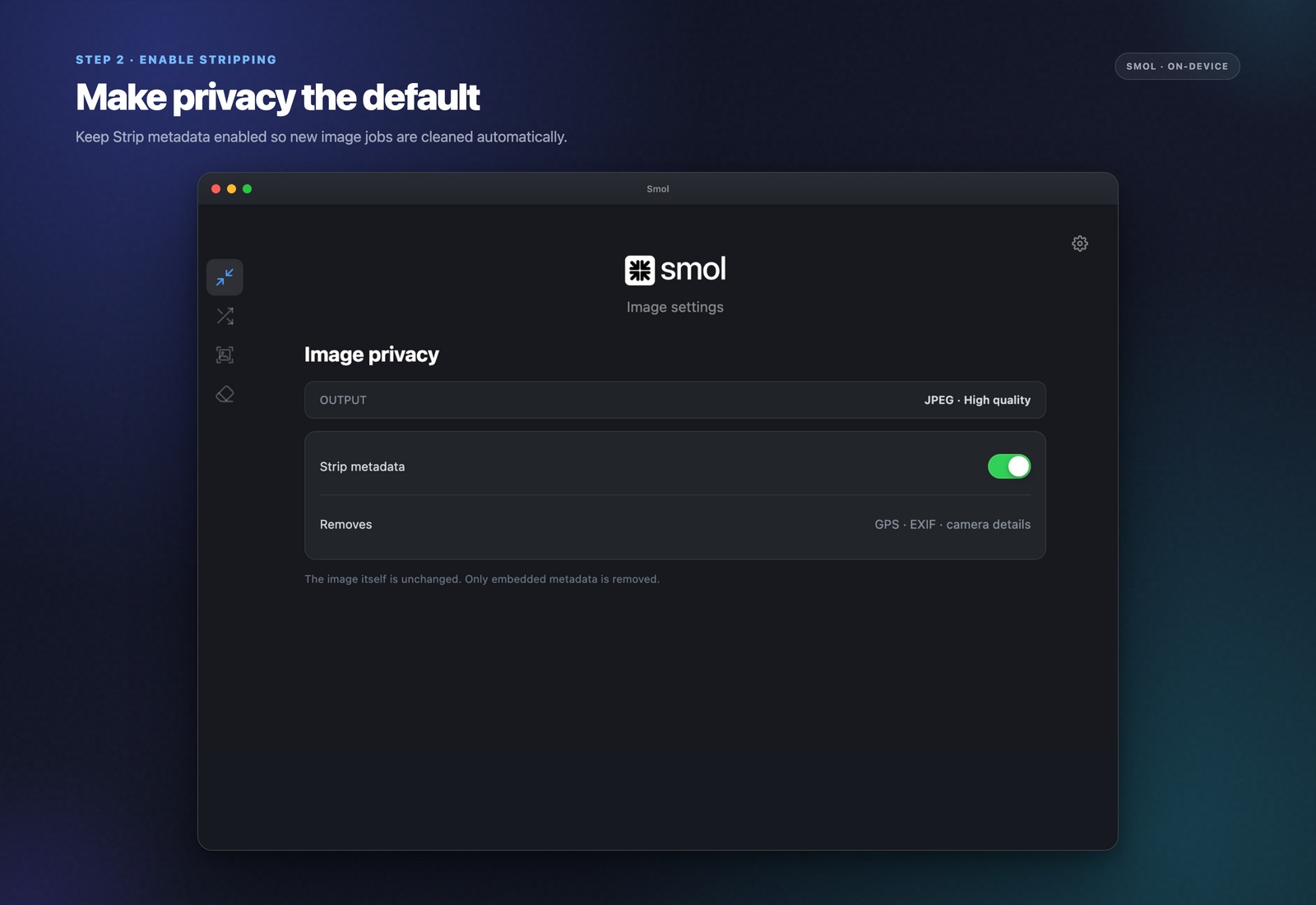
Enable "Strip metadata" in settings
This removes EXIF, GPS, IPTC, and XMP data in the same pass. You can enable it alongside compression, or run it on its own without recompressing the image at all.
Process the file
The image content is pixel-for-pixel unchanged — only the metadata is removed. Camera model, GPS coordinates, timestamp, and author fields are gone from the output file.
What EXIF data actually contains
EXIF (Exchangeable Image File Format) is metadata embedded automatically by cameras and phones — it typically includes the camera or phone model, the exact date and time the photo was taken, camera settings like aperture and shutter speed, and, if location services were on, the precise GPS coordinates of where the photo was captured. IPTC and XMP are related metadata standards that can additionally carry author name, copyright info, and descriptive keywords, depending on what added them.
Why this matters before sharing
GPS coordinates embedded in a photo posted publicly reveal exactly where it was taken — your home, a client's office, wherever the picture was shot — often without either the photographer or the subject realizing the data is there. Most social platforms strip EXIF automatically on upload, but email, Slack, direct messages, and many websites do not. If a photo is going anywhere you do not fully control, stripping metadata first removes the risk rather than relying on the recipient's platform to handle it for you.
This does not touch image quality
Metadata and pixel data are stored separately inside an image file. Stripping metadata is purely a data-removal operation — it does not re-encode or recompress the image, so there is no quality tradeoff at all, even if you run it without also compressing the file.
Frequently asked questions
How do I remove GPS location data from a photo on Mac?
Drop the photo into Smol and enable "Strip metadata" in settings, then process it. This removes GPS coordinates along with camera model, timestamps, and other EXIF fields, without changing the image itself.
Does removing EXIF data reduce image quality?
No. Metadata is stored separately from pixel data, so stripping it does not involve any recompression or quality loss — the image content is byte-for-byte identical except for the removed metadata.
Do social media platforms already remove EXIF data automatically?
Most major platforms (Instagram, Facebook, Twitter/X) strip EXIF data on upload, but this is not universal — email attachments, direct file sharing, Slack, and many websites do not remove it. Stripping metadata yourself before sharing removes the uncertainty.
What metadata does Smol remove?
EXIF (camera model, settings, timestamp, GPS coordinates), IPTC, and XMP data — including author information and descriptive keywords where present.
Can I strip metadata without also compressing the image?
Yes. Metadata removal is independent of compression — you can strip metadata on its own, leaving the image otherwise completely unchanged.
Keep reading