PDFs
Reduce a PDF’s File Size in Smol: Presets and Steps
A PDF exported from InDesign, Acrobat, or Keynote routinely lands at 30–80 MB — well past most email attachment limits, and painful to share over a slow connection. Here is how to reduce a PDF's file size on Mac using Smol, entirely offline, in whatever quality tier actually matches what the file is for. Comparing methods first? See how to compress a PDF on a Mac, five methods compared.
Step by step
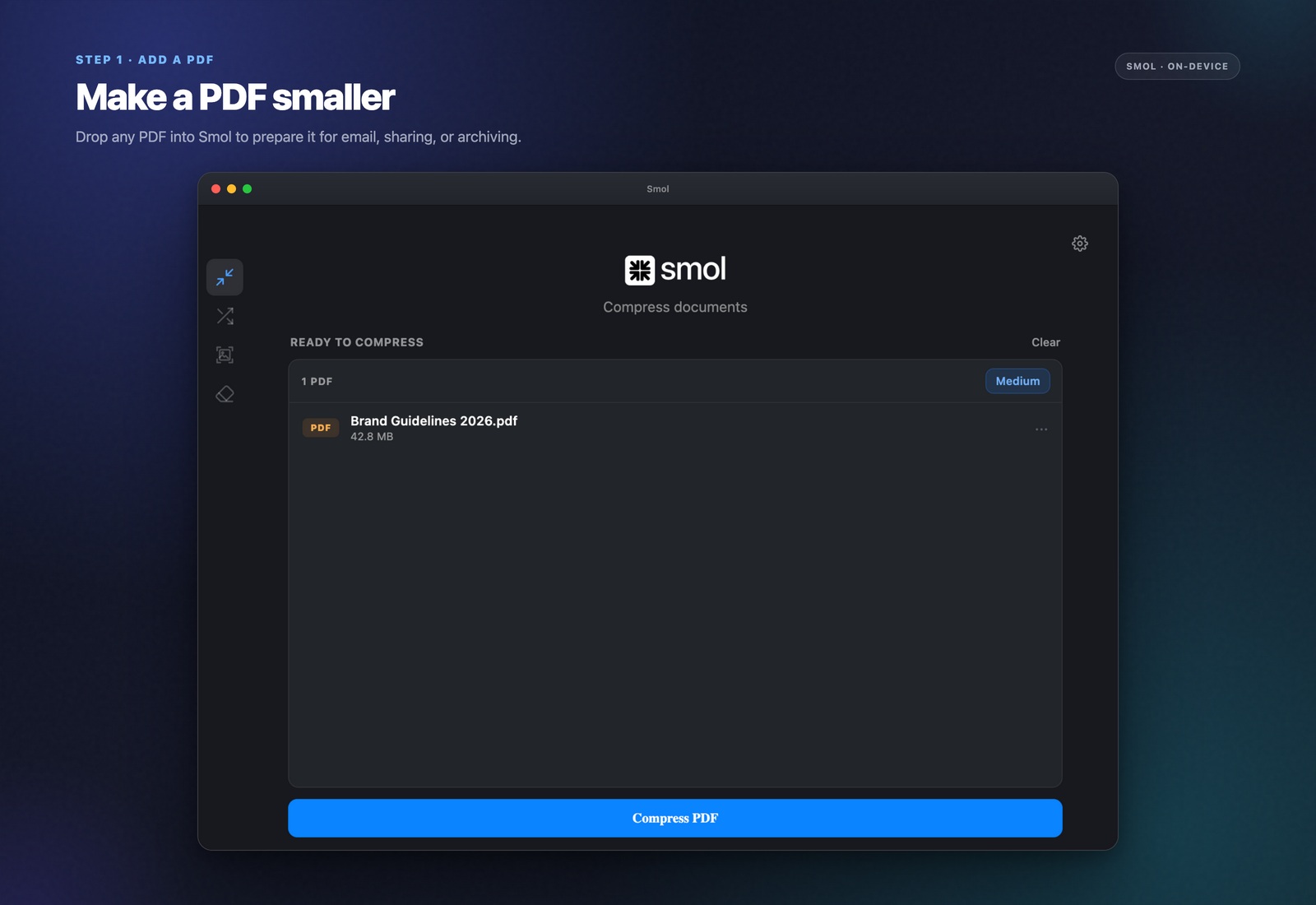
Drop your PDF into Smol
Drag one PDF or a folder of them onto the Smol window. Nothing uploads — the file stays on your Mac through the entire process.
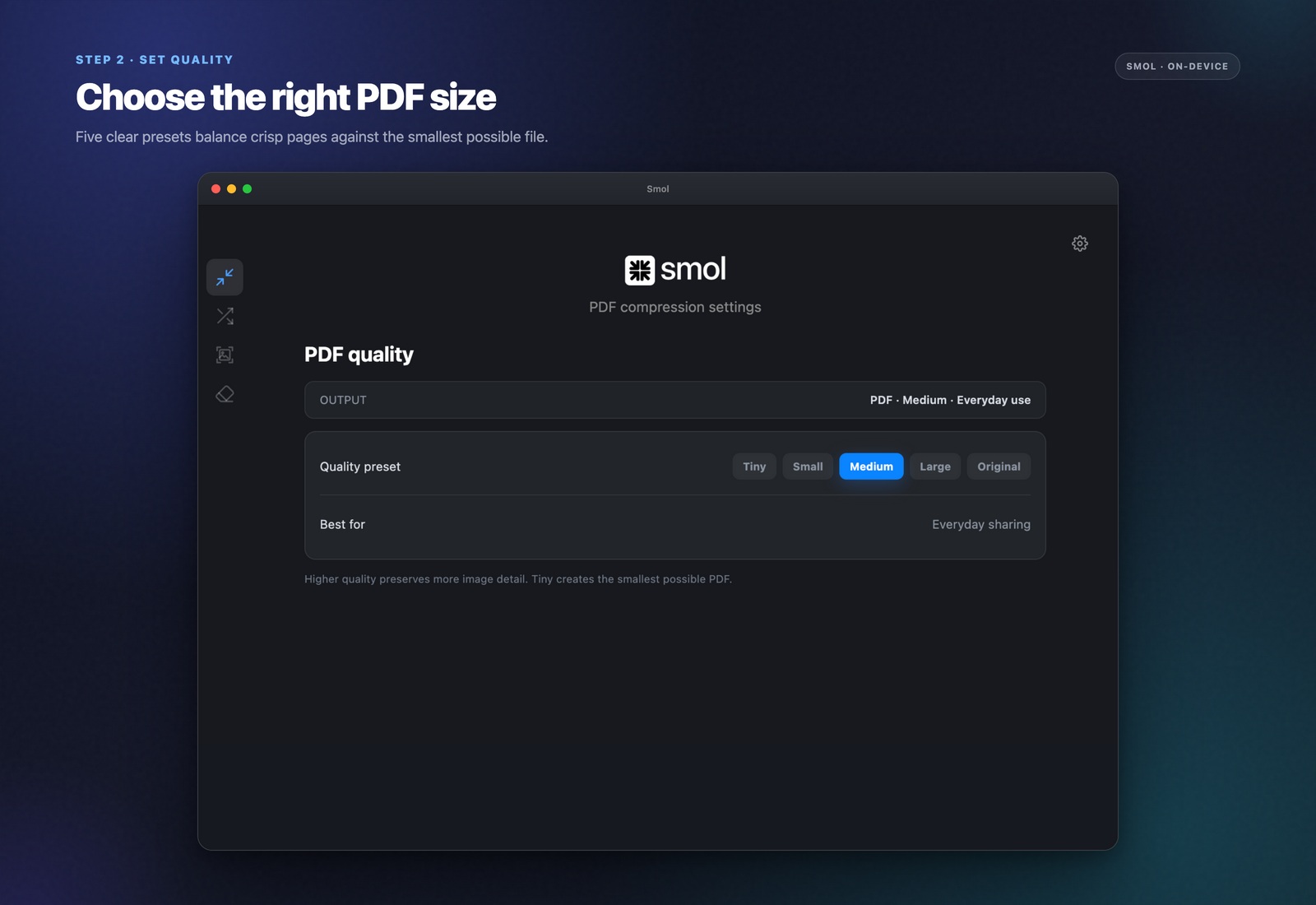
Pick a quality preset
Choose from five presets. Each caps the longest edge of every embedded image: Tiny at 600 px (smallest, email-ready), Small at 900 px (good for sharing), Medium at 1,200 px (everyday use), Large at 1,800 px, or Original at 2,400 px. Original is the lightest preset, not lossless: it still re-encodes images and resamples anything above 2,400 px. No preset strips metadata.
Compress
Smol re-encodes the images inside the PDF to the preset’s pixel cap and quality while leaving text and vector content sharp — text in a PDF is not raster data, so it never loses quality regardless of the preset chosen.
Check the result
Smol shows the exact size reduction achieved. In our test a 34.8 MB twelve-page layout export came out at 386 KB on the Medium preset. Image-heavy PDFs shrink the most; text-only PDFs shrink far less, so check the result before you send it.
Why PDFs get so large in the first place
Design and publishing tools embed images inside a PDF at whatever resolution they were placed at — often 300 DPI or higher, sized for print, even when the PDF will only ever be viewed on a screen. A handful of print-resolution photos is usually the entire reason a document balloons to tens of megabytes; the text and layout data contribute almost nothing to the total size by comparison.
Which preset to use for what
Tiny and Small are built for email and quick sharing — a 600 or 900 px cap is enough resolution for most documents read on a screen. Medium is a safe everyday default that keeps images looking sharp on a high-resolution display without carrying print-grade weight. Large and Original are the lightest presets, for when the PDF is headed to a printer or needs the most detail. Because the caps are pixel counts, the effective resolution depends on the page size, and even Original resamples anything above 2,400 px.
Why offline compression matters for PDFs specifically
PDFs disproportionately carry sensitive content — contracts, NDAs, financial statements, unreleased creative work — which makes uploading them to a browser-based compressor a real exposure, not just an inconvenience. Smol never uploads a file anywhere; every byte of processing happens on your Mac's own CPU, which also means there is no daily cap of the kind free web tools often impose.
Frequently asked questions
How do I compress a PDF on Mac without losing text quality?
Text and vector content in a PDF are not raster images, so the presets, which cap image size, never touch text sharpness. Only embedded photos and scanned pages are affected, and on a scan the text is part of the image, so a lower preset makes it harder to read.
What is the best PDF compression setting for email?
Small (900 px cap) is usually the right balance, small enough to clear most email attachment limits while still comfortable to read on screen. Tiny (600 px cap) goes further if the file is still too large.
Can I compress a PDF without uploading it online?
Yes — that is the specific gap Smol fills. All compression happens locally on your Mac; the file is never transmitted anywhere, which matters for contracts, medical records, or any document under an NDA.
How much smaller can a PDF get?
It depends on what is inside. In our test a 34.8 MB twelve-page layout export full of photos came out at 386 KB on the Medium preset. Text-only PDFs have much less to gain, since there is little image data to compress, and some PDFs barely change at all.
Can I batch-compress multiple PDFs at once on Mac?
Yes. Drop a folder of PDFs into Smol and it processes all of them in one pass, applying the same preset to each and showing individual results per file.
Keep reading