Workflow
How to Batch-Compress Hundreds of Files at Once on Mac
Compressing one file at a time is fine for one file. It falls apart the moment you have a folder of 300 product photos, a season of screen recordings, or a client delivery full of mixed formats. Here is how to batch-compress an entire folder on Mac in a single pass, with no size or count limit.
Step by step
Select or drag the whole folder
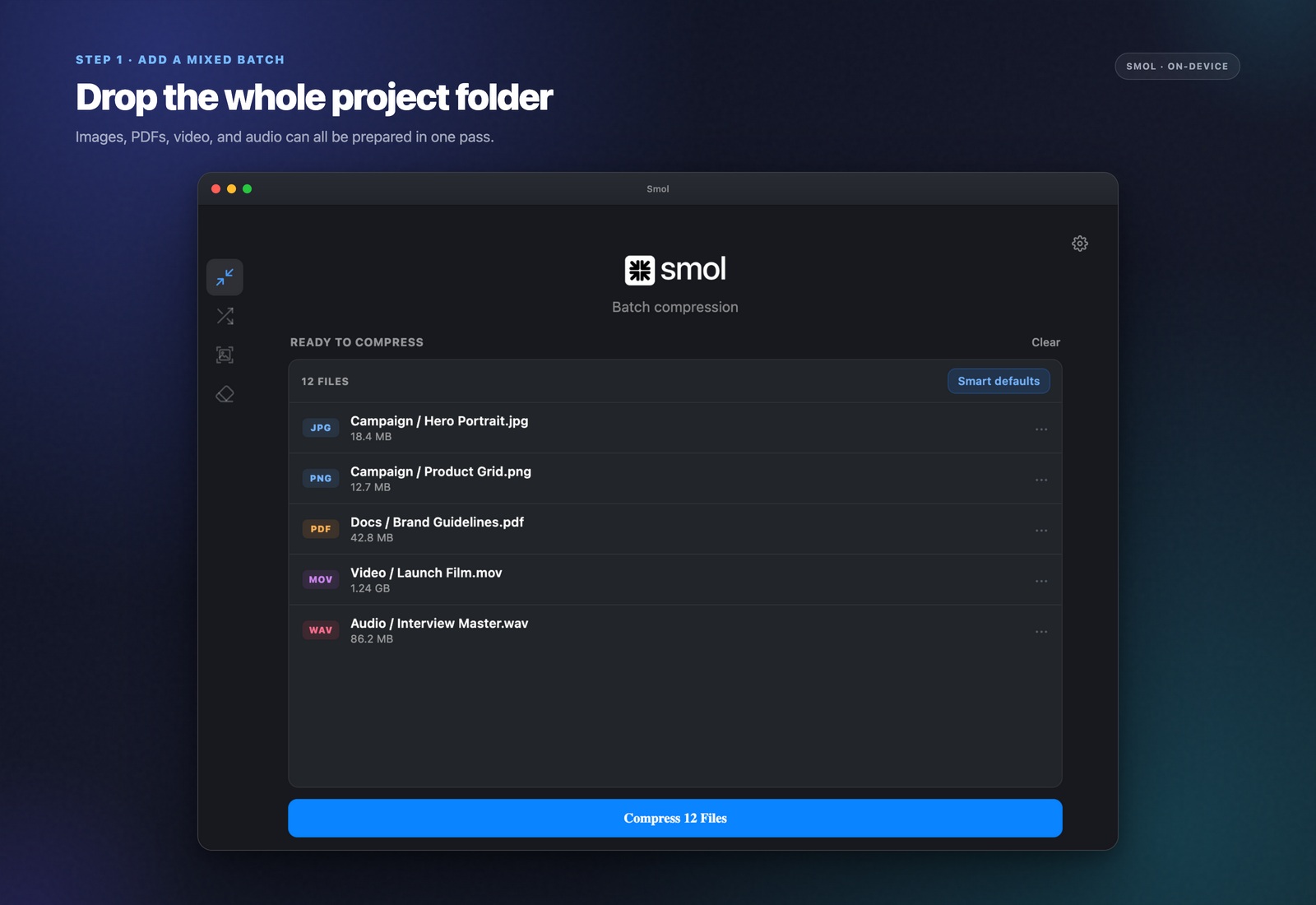
Drag a folder — or select multiple files at once in Finder — onto the Smol window. Images, PDFs, and videos can all be mixed together in the same batch; Smol sorts out how to handle each file type automatically.
Set your compression preferences once
Choose quality settings for each file type present in the batch — Neural or Classic for images, a PDF preset, High or Web for video. These settings apply across the whole batch, so you configure once rather than per file.
Run the batch
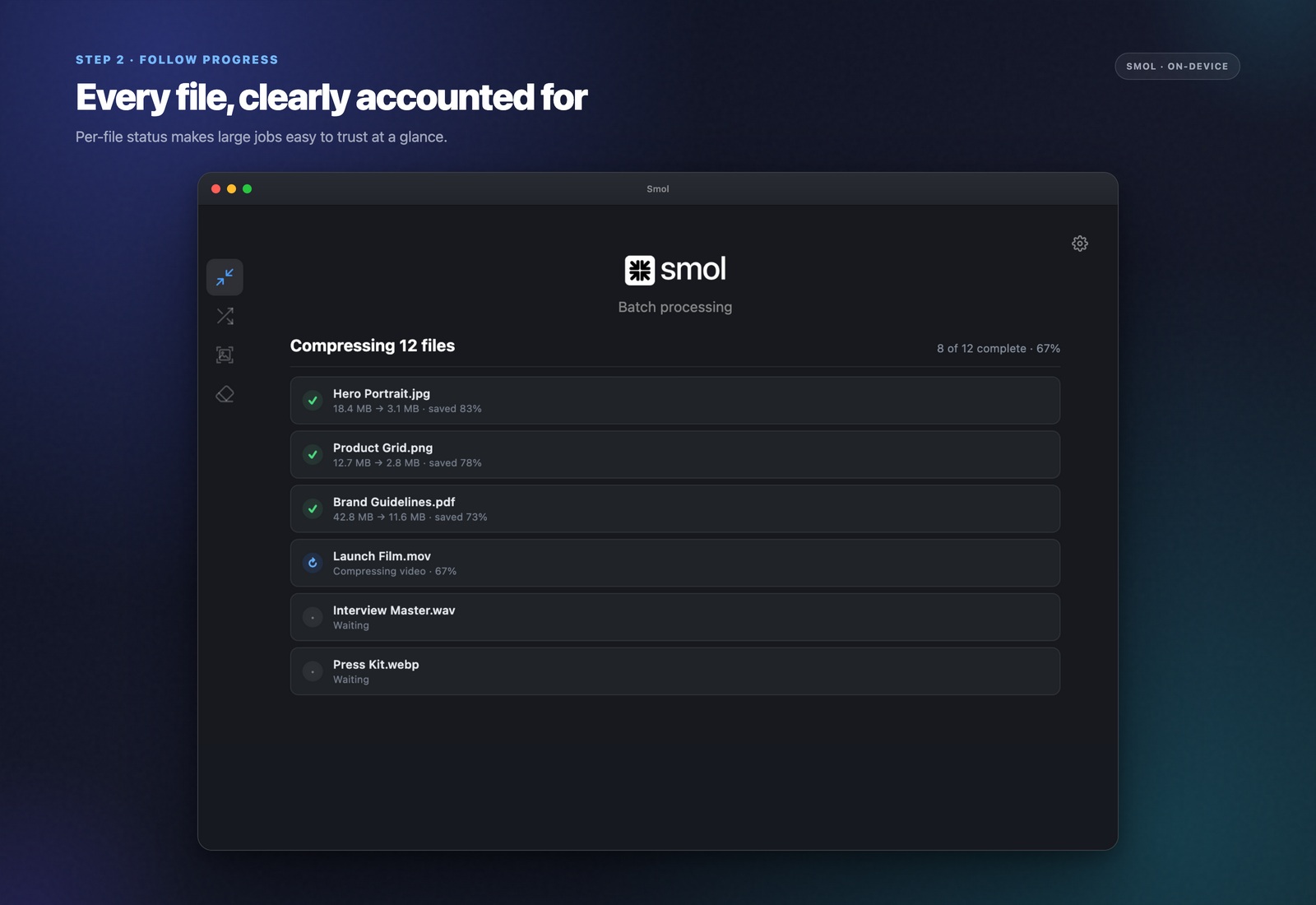
Smol works through the queue with per-file progress and per-file savings shown live. Virtual scrolling keeps the list responsive even past 1,000 files — the interface does not slow down as the batch grows.
Review, cancel, or re-optimize individual files
You can cancel mid-batch without losing the files already processed, or go back afterward and re-run specific files with different settings if one image or PDF needs a different treatment than the rest.
What "no limit" actually means
There is no file-count cap, no daily quota, and no per-file size ceiling. Drop a 4 GB video, a folder of 50,000 images, or 200 PDFs in one go — all of it works, because processing happens locally rather than against a server with rate limits. The only real constraint is your Mac's own disk space, which for almost any realistic batch is not a practical concern.
The limits this replaces
Browser-based compressors are built around per-request limits because they are paying for server time: TinyPNG caps free users at 5 MB per image, Smallpdf at 2 PDFs per day, iLoveImg at 25 MB per file. None of those numbers are really about what is technically possible — they exist because uploading and processing on someone else's server costs money per file. Local compression removes the reason for the cap entirely.
Mixing file types in one batch
A real-world delivery folder is rarely one file type — it is photos, a couple of PDFs, and maybe a short video, all needing to go out together. Smol handles that directly: drop the whole mixed folder in one pass rather than sorting files by type first and running three separate jobs.
Frequently asked questions
Is there a limit to how many files I can compress at once?
No hard limit. Smol has been used on batches well past 1,000 files; virtual scrolling in the interface keeps it responsive at that scale rather than slowing down as the list grows.
Can I mix images, PDFs, and videos in the same batch?
Yes. Drop a folder containing any combination of file types and Smol applies the appropriate compression settings to each based on its format, all within a single run.
What happens if I need to cancel a batch partway through?
Files already processed when you cancel keep their compressed results — nothing is lost or rolled back. You can resume with the remaining files later.
Can I re-compress just one file from a batch with different settings?
Yes. After a batch finishes, you can select an individual file and re-run it with different quality settings without needing to redo the whole batch.
Does batch size affect processing speed per file?
No — each file is processed independently using your Mac's CPU and GPU, so per-file speed stays consistent whether the batch is 5 files or 500. Total time scales roughly linearly with the number and size of files.
Keep reading