Images
How to Compress Images on Mac Without Losing Quality
A modern iPhone or mirrorless photo can weigh 5–15 MB. Multiply that by a folder of product shots, a batch of screenshots, or a client delivery, and file size stops being a footnote — it becomes slow uploads, blown email limits, and web pages that fail Core Web Vitals. Here is exactly how to compress images on your Mac using Smol, with no upload step and no quality guesswork.
Step by step
Open Smol and drop in your images
Drag one photo, a whole folder, or a batch of mixed formats — JPEG, PNG, WebP, AVIF, HEIC, or RAW (CR2, NEF, ARW, DNG) — straight onto the Smol window. Nothing uploads. The drop itself is the only step that touches your files.
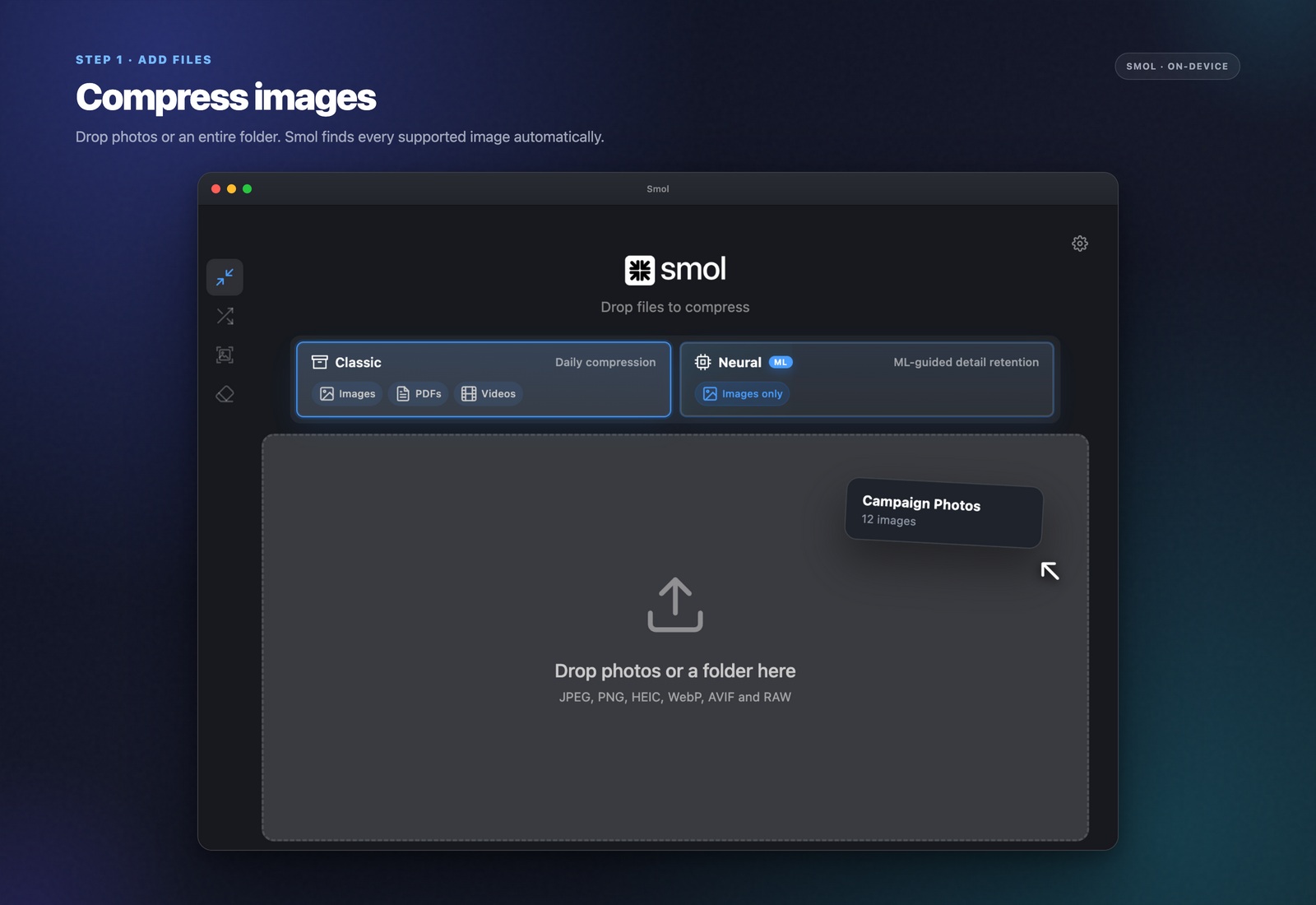
Choose Neural or Classic compression
Neural is the default for photos: it maps faces, text, and edges before compressing, so detail survives while the rest of the file shrinks. Classic is a faster, simpler pass for when an image does not need that level of care — screenshots, flat graphics, quick exports.
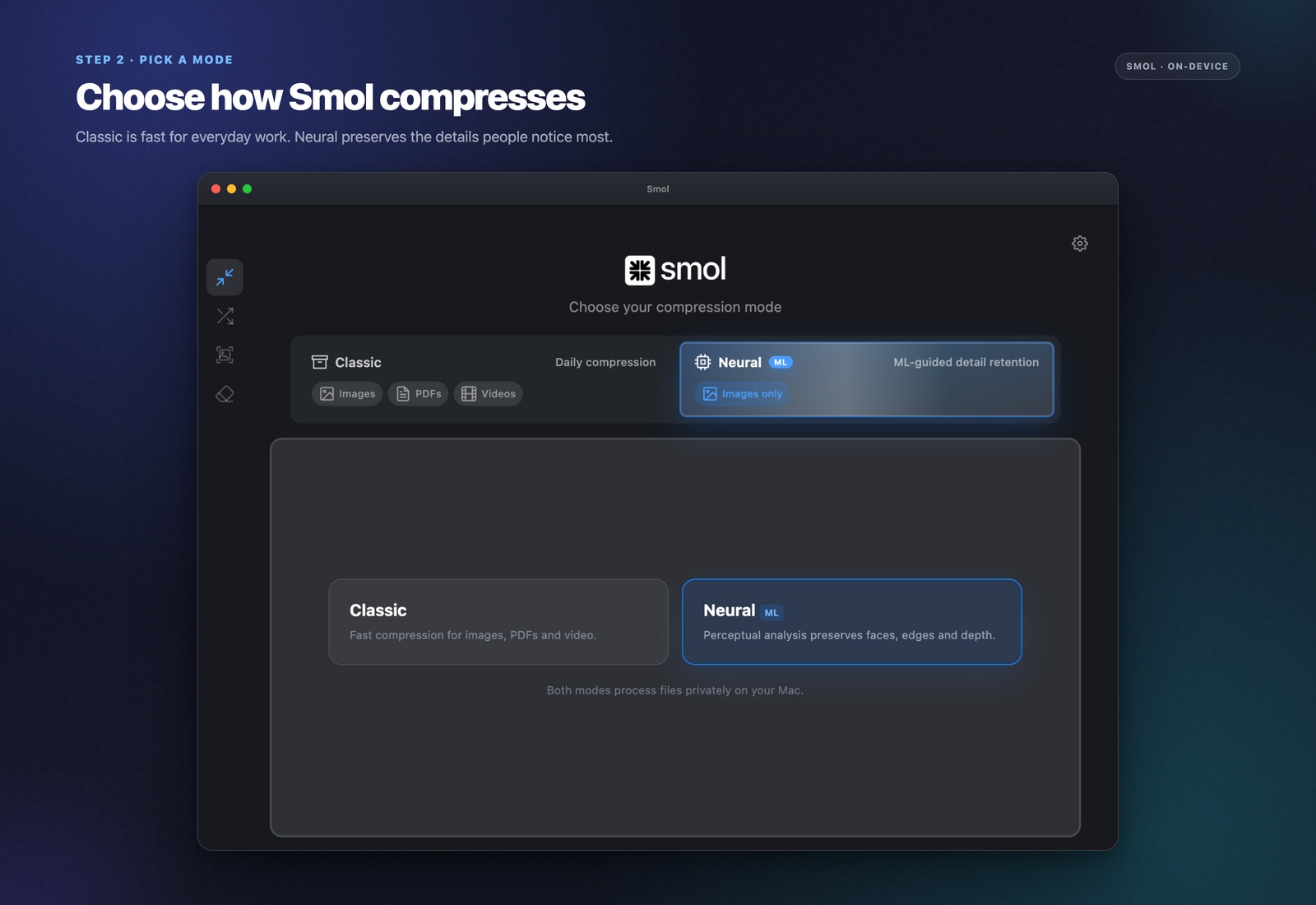
Pick an output format
Keep the original format, or convert while compressing — AVIF for the smallest possible file with modern browser support, WebP as a slightly more compatible middle ground, or JPEG for maximum compatibility with older software.
Adjust the quality slider if you want more control
The default setting is tuned for "no visible difference." Drag the slider lower for even smaller files, or higher if you are preparing images for print rather than screen.
Compress
Smol processes every file locally using your Mac's CPU and GPU. A single photo finishes in under a second; a folder of 500 finishes in the time it takes to make coffee. Each result shows its exact size reduction, and Smol always keeps the original if compression would somehow make a file larger.
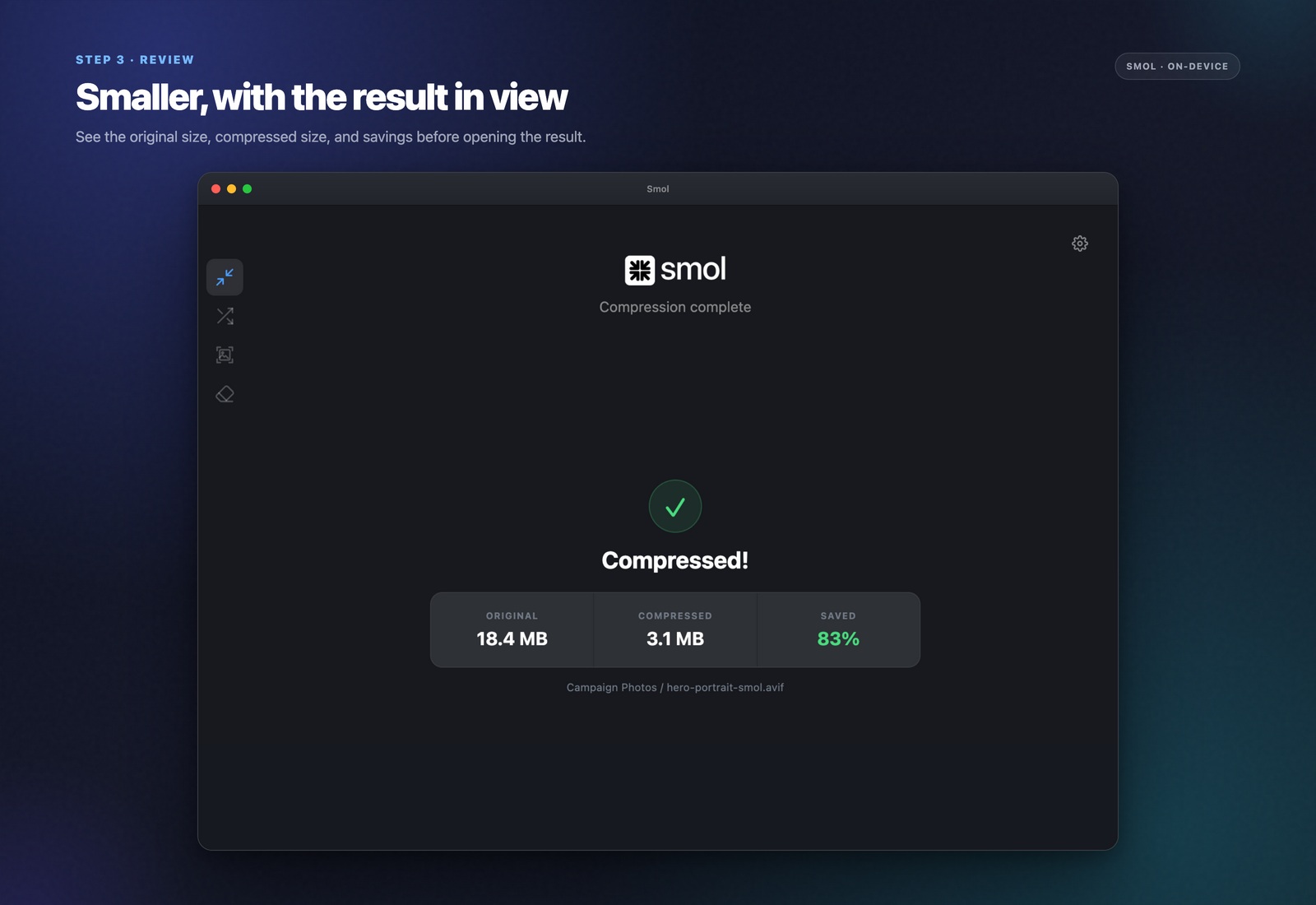
How much smaller do images actually get?
Typical results with Neural compression: JPEG photos come out 60–85% smaller. PNG files — which are lossless to begin with — still shrink 30–60% with zero quality loss, because Smol re-optimizes the compression itself rather than throwing away pixels. Converting to AVIF on top of that typically adds another 20–30% on top of the JPEG numbers, since AVIF is a more efficient codec than JPEG at the same visual quality.
The honest caveat: an image that has already been heavily compressed once has less room to shrink further. A camera RAW file or a lightly-compressed JPEG straight off a phone has the most to gain; an image already run through a lossy compressor twice will show smaller (but still real) savings.
Which format should you actually pick?
AVIF is the smallest option available today with solid support across Chrome, Safari, Firefox, and Edge — the right default for web images where load time matters and you control the delivery pipeline.
WebP is a safer middle ground: nearly as small as AVIF, with a longer support history in older software and some third-party tools that have not caught up to AVIF yet.
JPEG remains the right choice when the file needs to open reliably in anything — older design software, a client's unknown toolchain, a print workflow that expects it. Smol writes all three, so you are never locked into one answer.
Why compress locally instead of using a web tool
Browser-based compressors require uploading the file, waiting on someone else's server, then downloading the result — and most cap free users hard: TinyPNG limits you to 5 MB per image, others cap the number of files per day. Local compression skips the upload and download entirely, which is both faster and means an NDA'd client photo or an unreleased product shot never leaves your Mac. There is no account, no server, and no queue — the only real limit is your own disk space.
Frequently asked questions
Does compressing an image on Mac reduce quality?
Some quality loss is inherent to lossy formats like JPEG, WebP, and AVIF, but Smol's Neural compression targets it precisely: faces, text, and edges are protected while low-detail regions like sky and smooth backgrounds are compressed harder. Most results are visually indistinguishable from the original at normal viewing sizes. PNG compression is lossless — there is no quality tradeoff at all.
Can I compress hundreds of images at once on Mac?
Yes. Drag a folder of 500+ mixed images into Smol and it processes all of them, with per-file progress and per-file savings shown as it works. There is no batch size cap.
Is there a free way to compress images on Mac without uploading?
macOS Preview can re-export JPEGs at a lower quality setting, and the built-in `sips` command-line tool can resize and adjust JPEG quality — both work offline. Neither supports AVIF output, batch processing at scale, or content-aware compression, which is where a dedicated tool like Smol adds the most value.
What image formats does Smol support?
Smol reads JPEG, PNG, WebP, AVIF, HEIC, GIF, TIFF, BMP, and RAW formats including CR2, NEF, ARW, and DNG. It can write JPEG, PNG, WebP, and AVIF.
Does image compression happen instantly?
A single photo compresses in under a second. Processing time scales with file count and size, but everything runs on your Mac's own CPU and GPU — there is no upload or download step adding latency, so it is consistently faster than a browser-based tool.
Keep reading