Images
How to Convert Images to AVIF or WebP on Mac
AVIF and WebP are both meaningfully smaller than JPEG at the same visual quality, and both now have solid browser support. Here is how to convert images to either format on Mac, in a single batch, without a browser-based converter or an upload step.
Step by step
Drop your images into Smol
Drag JPEG, PNG, HEIC, TIFF, or RAW files (CR2, NEF, ARW, DNG) — or a whole folder of them — onto the Smol window.
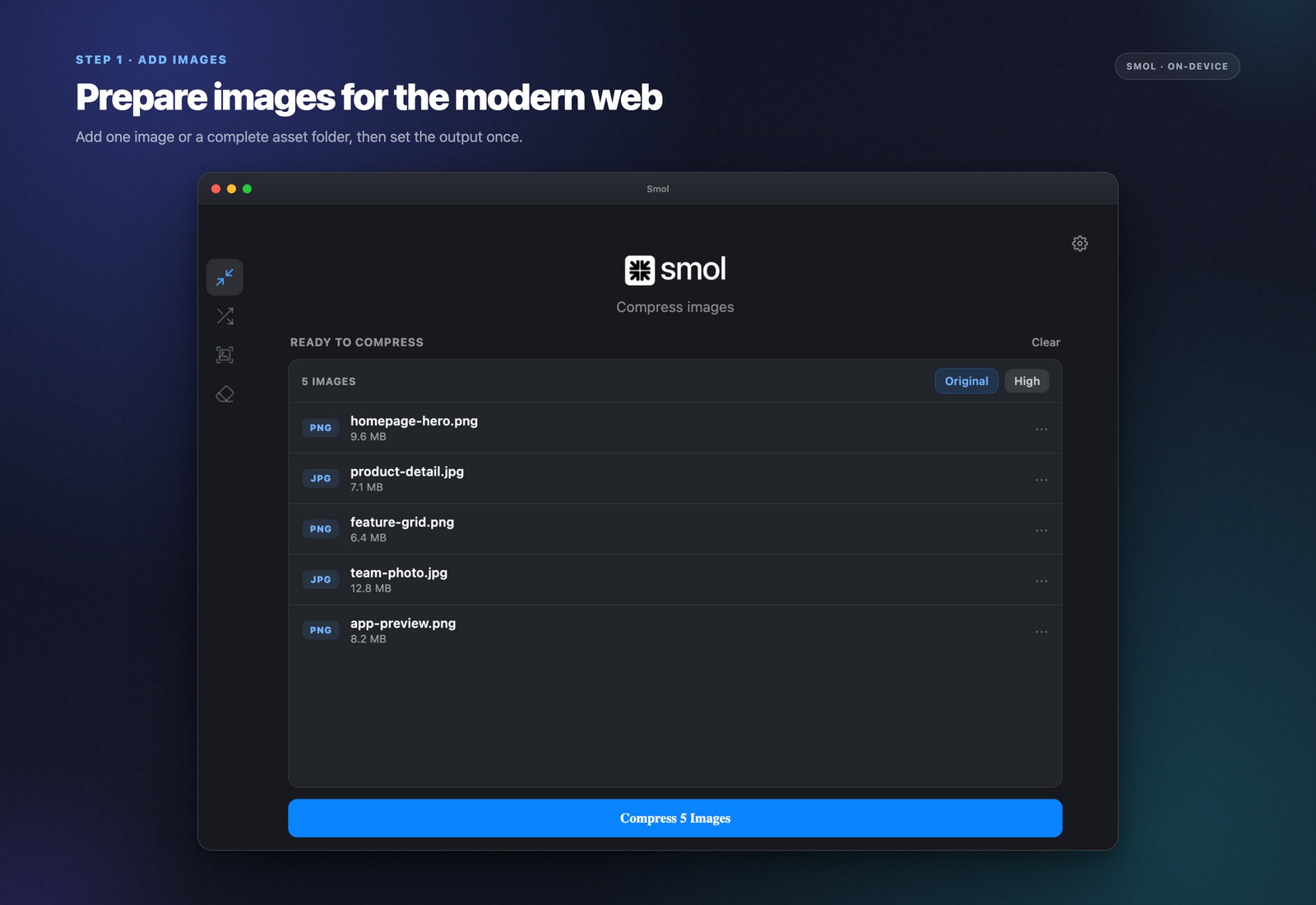
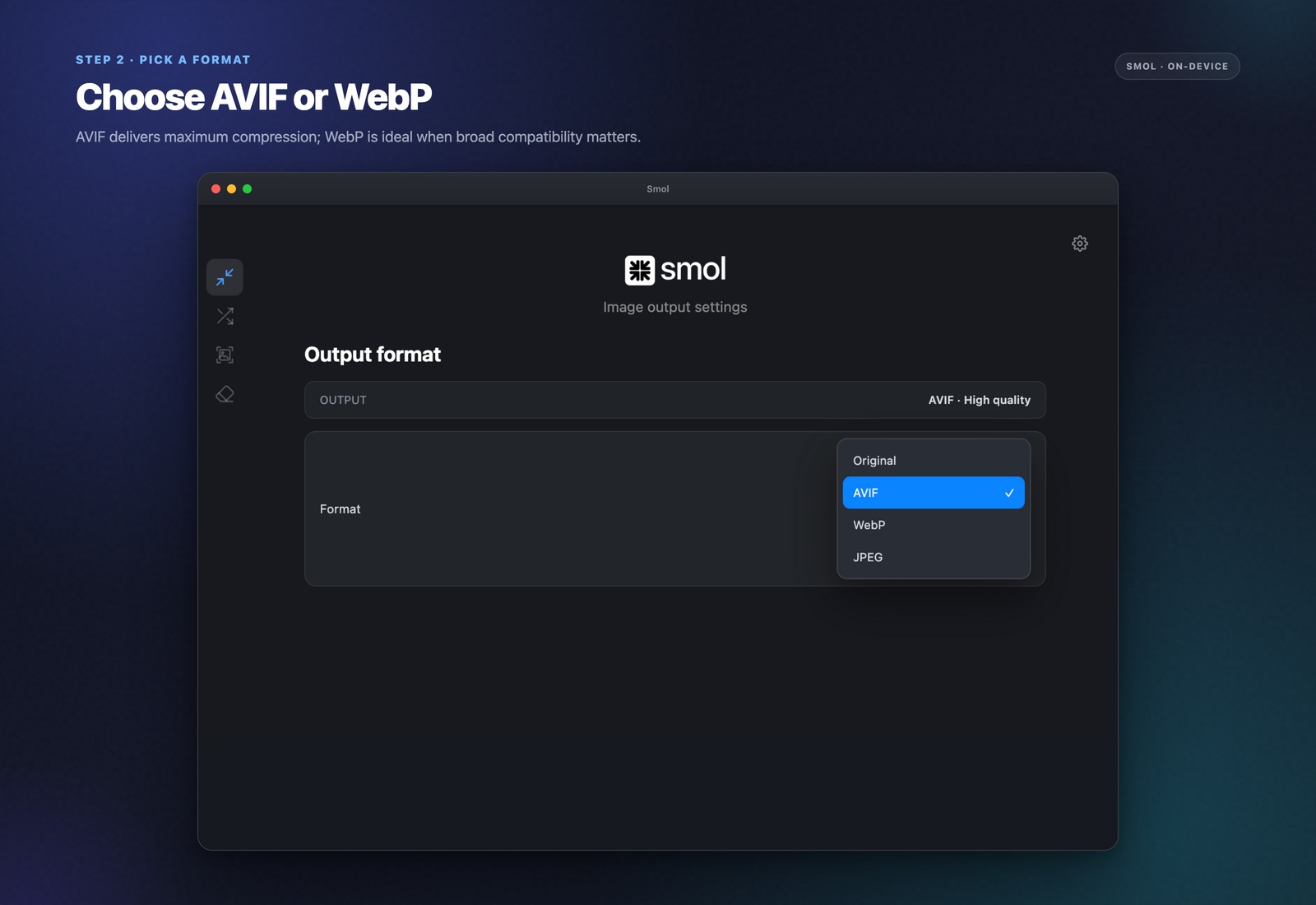
Set the output format to AVIF or WebP
Choose AVIF for the smallest possible file size, or WebP for a slightly larger but marginally more compatible alternative — both are set in the same output format menu.
Adjust quality if needed
Leave the default for a balance tuned toward "no visible difference," or let Neural compression allocate quality per region — protecting faces, text, and edges while compressing flatter areas harder.
Convert
Files write locally and nothing is uploaded at any point. A folder of RAW files can go straight to web-ready AVIF in one pass, without a separate export step through a photo editor first.
AVIF vs. WebP: which one to pick
AVIF is generally the smaller of the two at equivalent visual quality — typically 30–50% smaller than JPEG, compared to WebP's roughly 25–35% — and handles photographic content particularly well. WebP has a slightly longer support history in older software and some tools that have not added AVIF support yet, which makes it the safer choice only when compatibility with something specific is a known concern. For a modern website or app, AVIF is the stronger default.
Browser support in practice
Both formats are supported across current versions of Chrome, Safari, Firefox, and Edge. The gap that remains is with older software outside the browser — some desktop image editors, older CMS platforms, and legacy tooling still expect JPEG or PNG. If a file needs to be handed off to an unknown toolchain, JPEG remains the safest universal choice; for anything you control end-to-end, AVIF or WebP is the better call.
Going straight from RAW to web-ready
Smol reads RAW files directly — CR2, NEF, ARW, DNG — so photography can go from a memory card to a web-ready AVIF or WebP file in one pass, without first exporting through Lightroom or a similar editor just to get to a supported input format.
Frequently asked questions
How do I convert a JPEG to AVIF on Mac?
Drop the JPEG into Smol, set the output format to AVIF, and convert. The process runs locally with no upload step, and works the same way for a single image or a whole batch.
Is AVIF better than WebP?
AVIF is usually smaller at equivalent quality, particularly for photographic content. WebP has marginally broader legacy support. Smol outputs both, so you can compare directly on your own images if it matters for your use case.
Can I convert RAW camera files directly to AVIF?
Yes. Smol reads RAW formats including CR2, NEF, ARW, and DNG directly, and can output straight to AVIF or WebP without needing to export through a separate photo editor first.
Will converting to AVIF break compatibility with anything?
AVIF has strong support across all current major browsers. The risk is with older or niche software that has not added AVIF support — if a file needs guaranteed compatibility with an unknown destination, JPEG remains the safer choice.
Can I batch convert a whole folder to AVIF at once?
Yes, with no limit on batch size. Drop a folder of any size into Smol and it converts every file in one pass.
Keep reading