Images
How to Convert HEIC to JPEG on Mac
HEIC is the default photo format on every iPhone since 2017, and it is also the single most common source of "why won't this file open" frustration — plenty of software, websites, and older tools still expect JPEG. Here is how to convert HEIC to JPEG (or PNG, WebP, AVIF) on Mac, one photo or an entire camera roll export at a time, without uploading anything.
Step by step
Drop your HEIC files into Smol
Drag a single .heic file, or select the whole folder you exported from Photos or AirDropped from your iPhone. Smol reads HEIC natively — no plugin or codec install required.
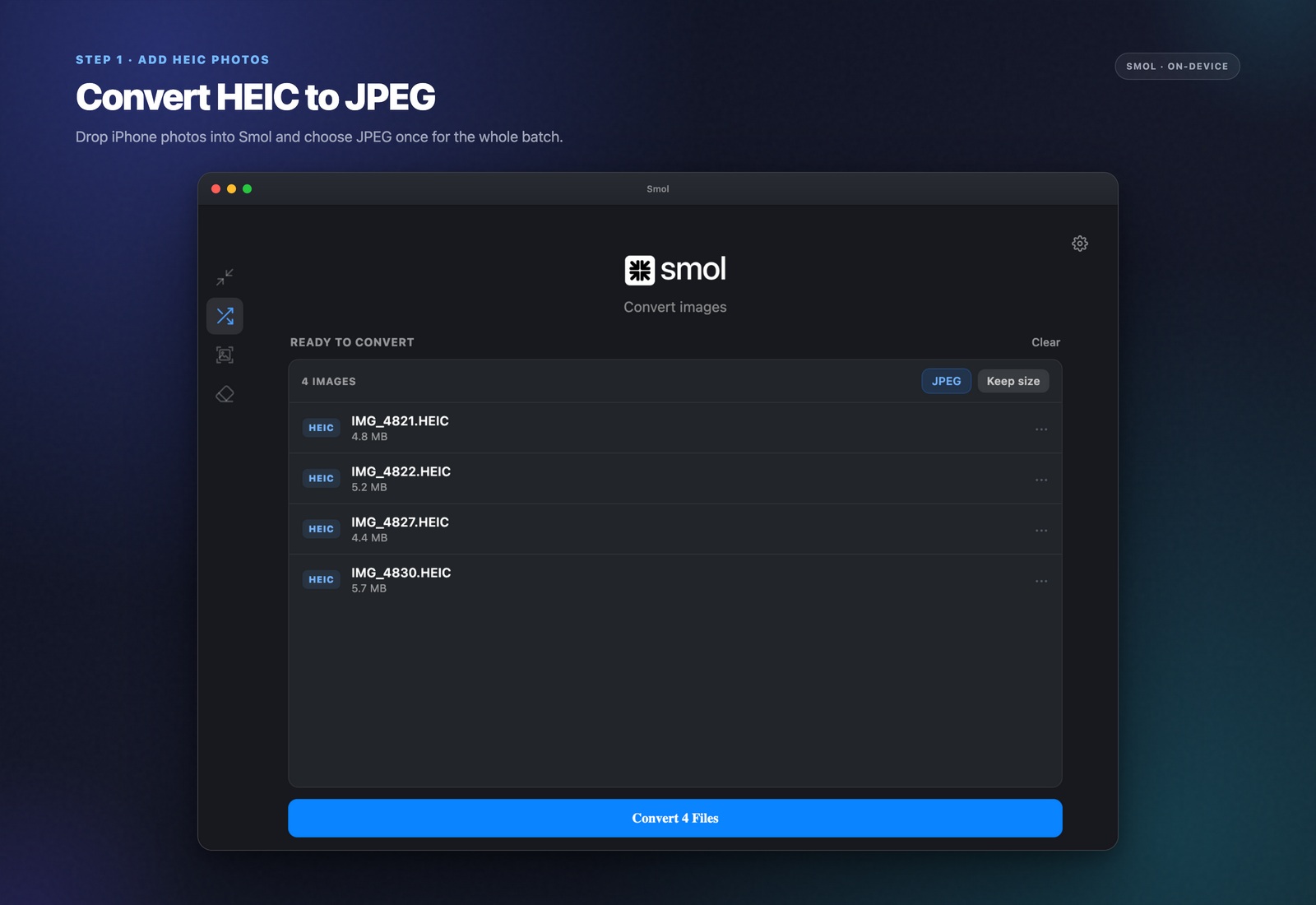
Set the output format to JPEG
In the format settings, choose JPEG as the output. PNG, WebP, and AVIF are also available if you need a different target format for the same batch.
Choose a quality level
The default preserves visual quality while still shrinking the file — HEIC is already fairly efficient, so a straight conversion at high quality typically lands close to the original size; lowering the quality slider trades some detail for a smaller JPEG.
Convert the batch
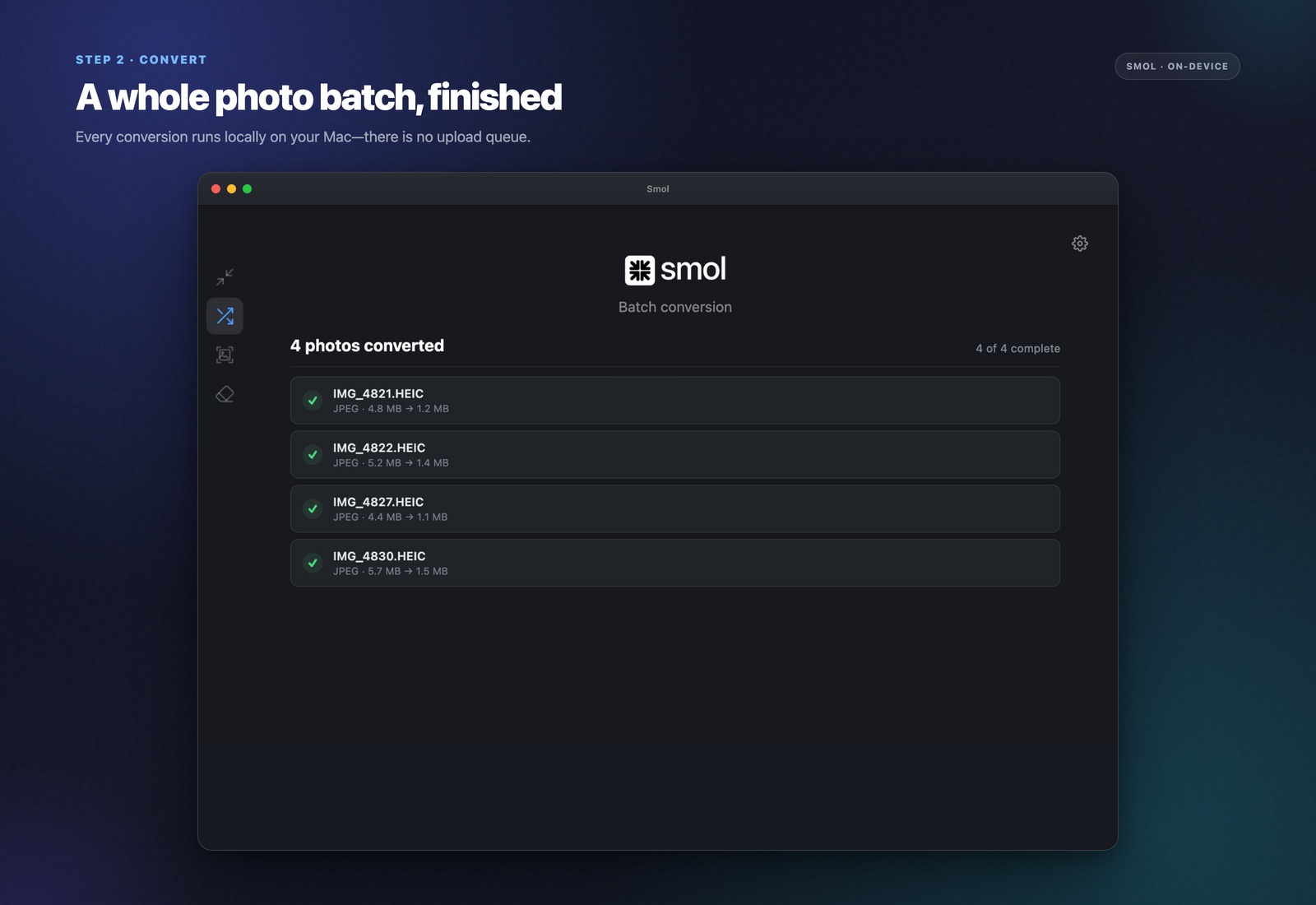
Smol processes every file locally. A folder of a few hundred photos from a camera roll export finishes in well under a minute, and nothing is ever sent anywhere during the process.
Why iPhones use HEIC in the first place
HEIC (High Efficiency Image Container) stores photos at roughly half the file size of an equivalent-quality JPEG, which is why Apple made it the default in iOS 11 — it saves a meaningful amount of iCloud storage and on-device space. The tradeoff is compatibility: HEIC support outside Apple's own ecosystem has improved but is still inconsistent, which is why converting to JPEG remains the most reliable fix when a file needs to open anywhere.
Converting a whole camera roll export at once
The usual trigger for this is exporting photos from the Photos app or AirDropping a batch from an iPhone, then discovering half your tools cannot open the result. Smol handles that exact case directly — drop the whole exported folder in one go rather than converting files one at a time, and it keeps per-file progress visible as it works through however many photos are in the batch.
Frequently asked questions
How do I convert HEIC to JPG on Mac for free?
macOS Preview can open a HEIC file and re-export it as JPEG one at a time via File > Export. For batches, Automator or the Photos app's export options also work but offer limited control over output quality or format. Smol adds batch processing, quality control, and additional output formats (PNG, WebP, AVIF) in one pass.
Does converting HEIC to JPEG lose quality?
JPEG is a lossy format, so a straight conversion involves some re-encoding, but at high quality settings the difference is not visible in normal viewing. Smol lets you control the quality level directly rather than accepting a fixed default.
Can I convert HEIC to formats other than JPEG?
Yes — Smol also outputs PNG, WebP, and AVIF from the same HEIC source. AVIF in particular produces a smaller file than JPEG at equivalent quality if browser compatibility for your use case allows it.
Why won't my HEIC photos open on Windows or in an old app?
HEIC requires codec support that not every operating system or application ships with by default. Converting to JPEG sidesteps the issue entirely, since virtually everything can open a JPEG.
Does Smol upload my photos to convert them?
No. Every conversion runs locally on your Mac using bundled codecs. Photos never leave your device — there is no upload step, account, or server involved at any point.
Keep reading