Video
How to Compress Video for Email, Slack, and Discord on Mac
A two-minute screen recording can easily land at 80–150 MB — well past what Slack, Discord, or email will let you attach directly. Here is how to compress a video on Mac down to a size that actually clears those limits, without learning HandBrake's preset system.
Step by step
Drop your video into Smol
Drag an MP4, MOV, AVI, MKV, or WebM file onto the Smol window. Nothing uploads — the file is read and processed directly from disk.
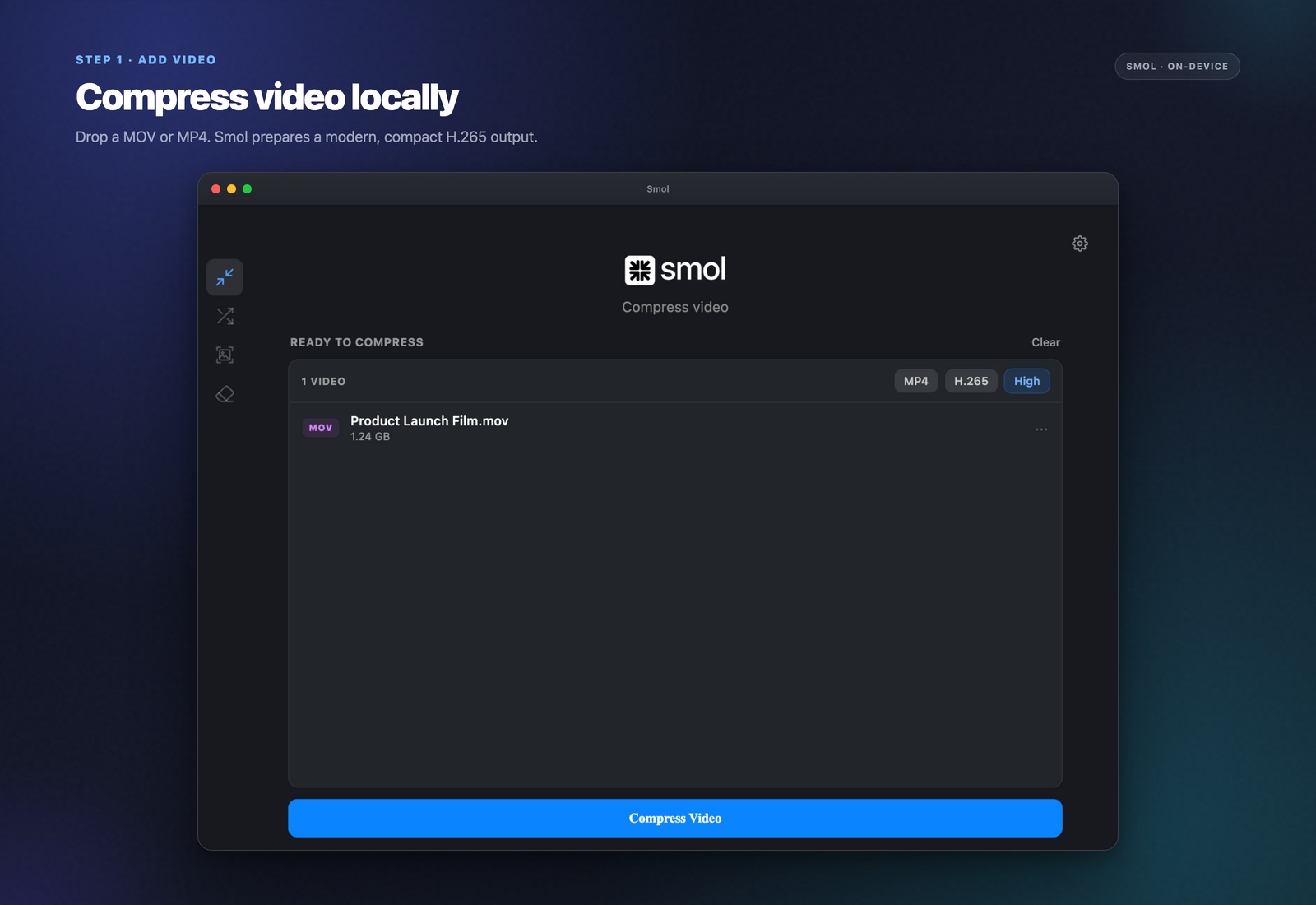
Choose High or Web quality
High keeps the resolution and detail close to the source, for when you still need it to look sharp. Web targets the smallest practical file size for sharing — the right choice for a screen recording headed to Slack or an attachment for email.
Compress
Smol encodes using H.265 (HEVC), the same standard HandBrake uses, but without any preset menu, flags, or configuration screen. An 84 MB screen recording typically compresses to around 7–8 MB on the Web setting.
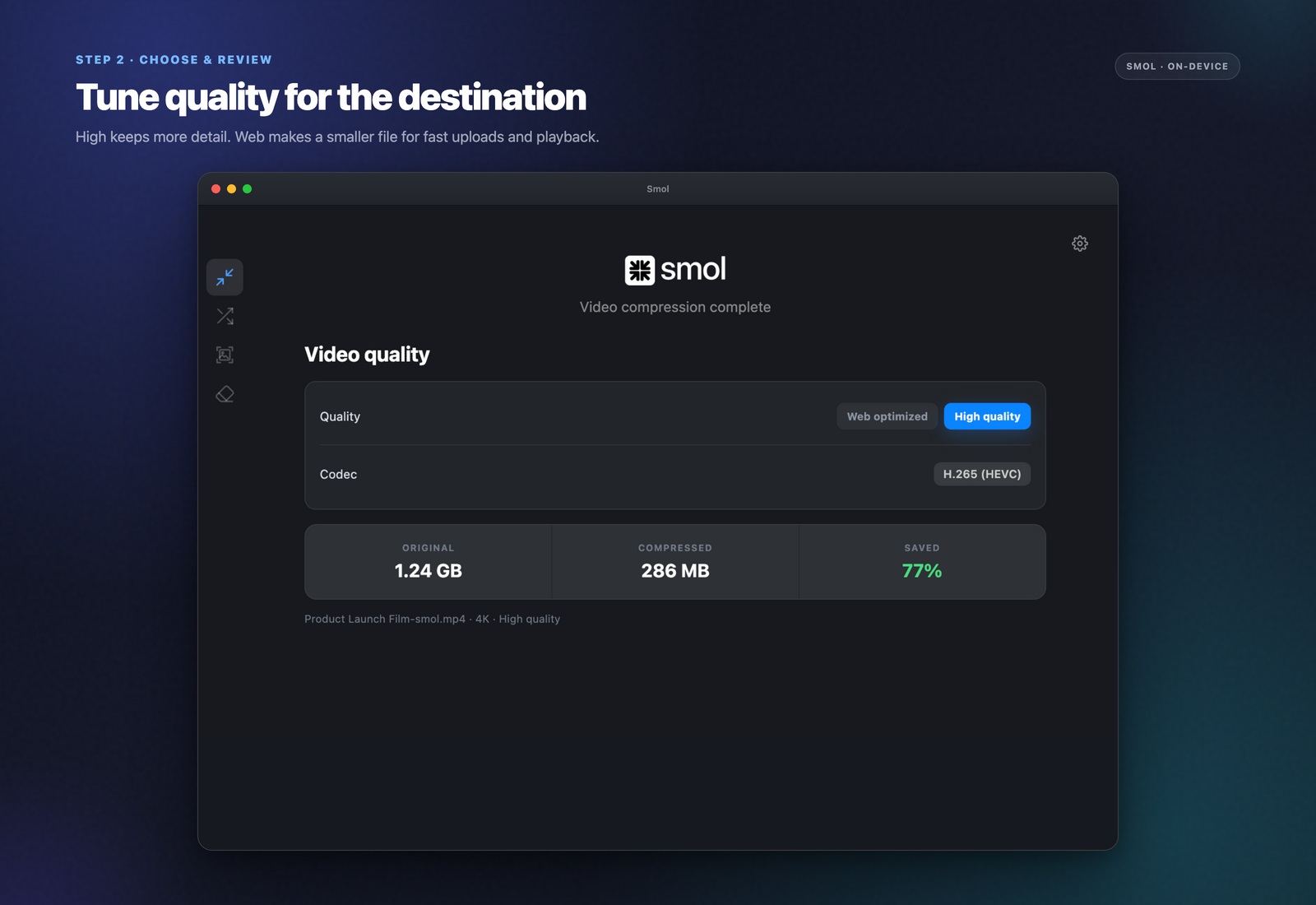
Why H.265 instead of H.264
H.265 (HEVC) is roughly 50% more efficient than the older H.264 standard at equal visual quality — meaning a comparable-looking video comes out at roughly half the file size. Support for playing H.265 video is now standard across macOS, iOS, and every major browser, so there is little reason to still target H.264 unless a specific older tool in your workflow requires it.
What the common upload limits actually are
Slack caps free-tier file uploads at 1 GB (lower on some legacy plans), Discord caps at 25 MB for most users without Nitro, and most email providers cap attachments around 25 MB. Discord's limit is the one that trips people up most often — an unedited screen recording routinely blows past 25 MB even for a short clip, which is exactly the gap the Web quality setting is built to close.
Why this beats HandBrake for quick jobs
HandBrake is free, capable, and the right tool for serious video work — but its preset library, container/codec choices, and two-pass encoding options are built for people who already know what they want. For the far more common case of "make this screen recording small enough to attach," that configuration surface is pure friction. Smol collapses the decision to two options — High or Web — and gets out of the way.
Frequently asked questions
How do I compress a video on Mac without HandBrake?
Drop the video into Smol, choose High or Web quality, and compress. It uses the same H.265 encoding standard as HandBrake but without any preset configuration — the two-option choice covers the vast majority of real use cases.
What is the best video setting to email a file?
Web quality, which targets the smallest practical file size for sharing rather than maximum fidelity. Most email providers cap attachments around 25 MB, and a screen recording or short clip compressed on Web quality typically clears that easily.
Does compressing video reduce the resolution?
No — compression reduces file size primarily by re-encoding more efficiently, not by shrinking the frame dimensions. Web quality does apply stronger compression than High, which can be visible on close inspection, but the resolution itself is unchanged.
How much smaller does an 84 MB screen recording get?
Typically down to around 7–8 MB on Web quality — roughly a 90% reduction, which is common for screen recordings since they tend to have large static areas that compress very efficiently.
Does Smol upload video files to compress them?
No. Every video is processed locally using your Mac's CPU and GPU. There is no upload step, so compression time depends only on your hardware and the file itself — not your internet connection.
Keep reading