Images
How to Upscale Images with AI on Mac (No Cloud, No Subscription)
Traditional resizing makes an image bigger by stretching existing pixels — the result looks soft and blurry past a certain point. AI upscaling reconstructs plausible detail instead. Here is how to upscale an image on Mac using Smol's on-device AI, with no cloud round-trip and no per-image cost.
Step by step
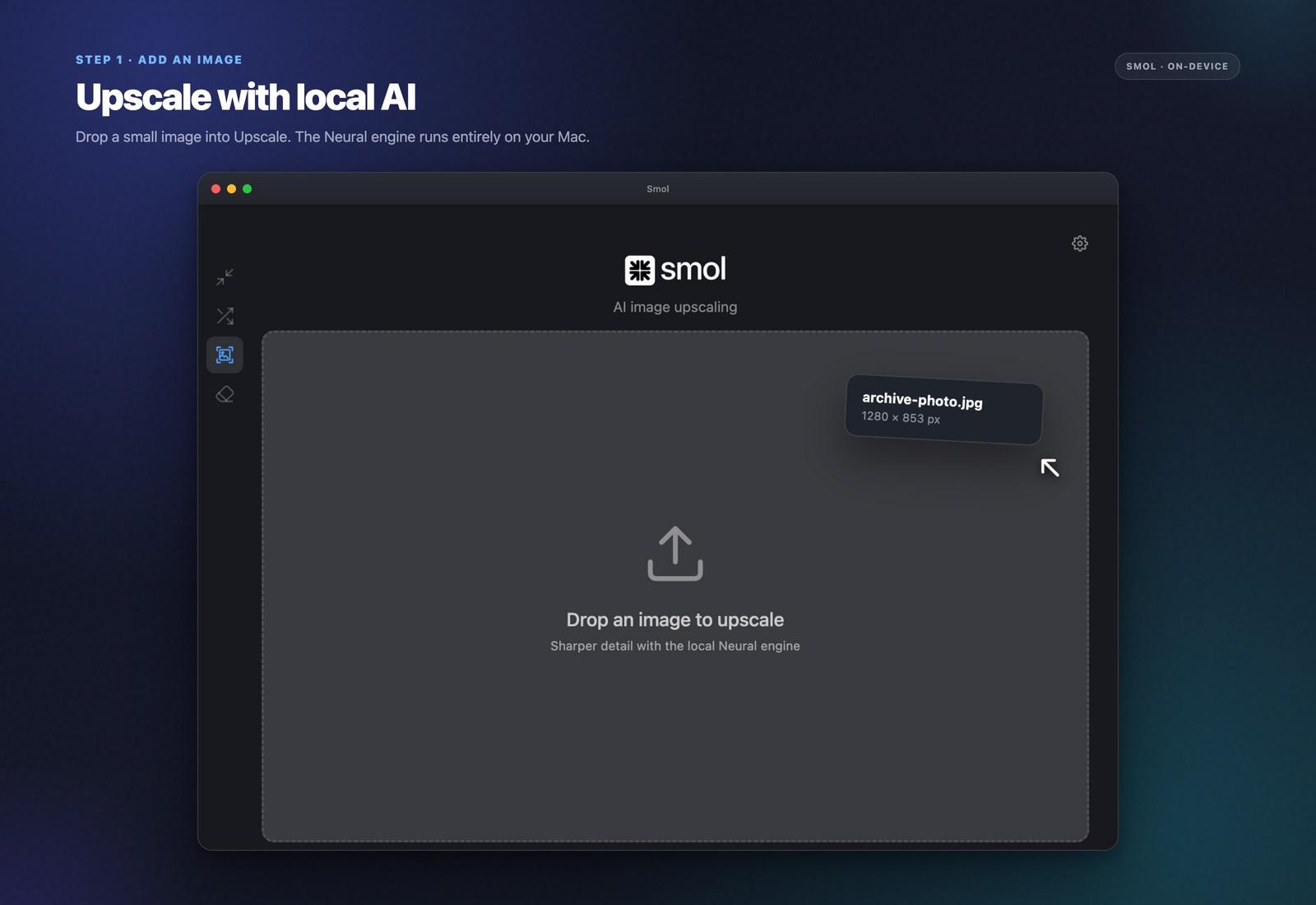
Drop your image into Smol
Drag in the image you want to enlarge — this works best on photos, but also handles illustrations and graphics reasonably well.
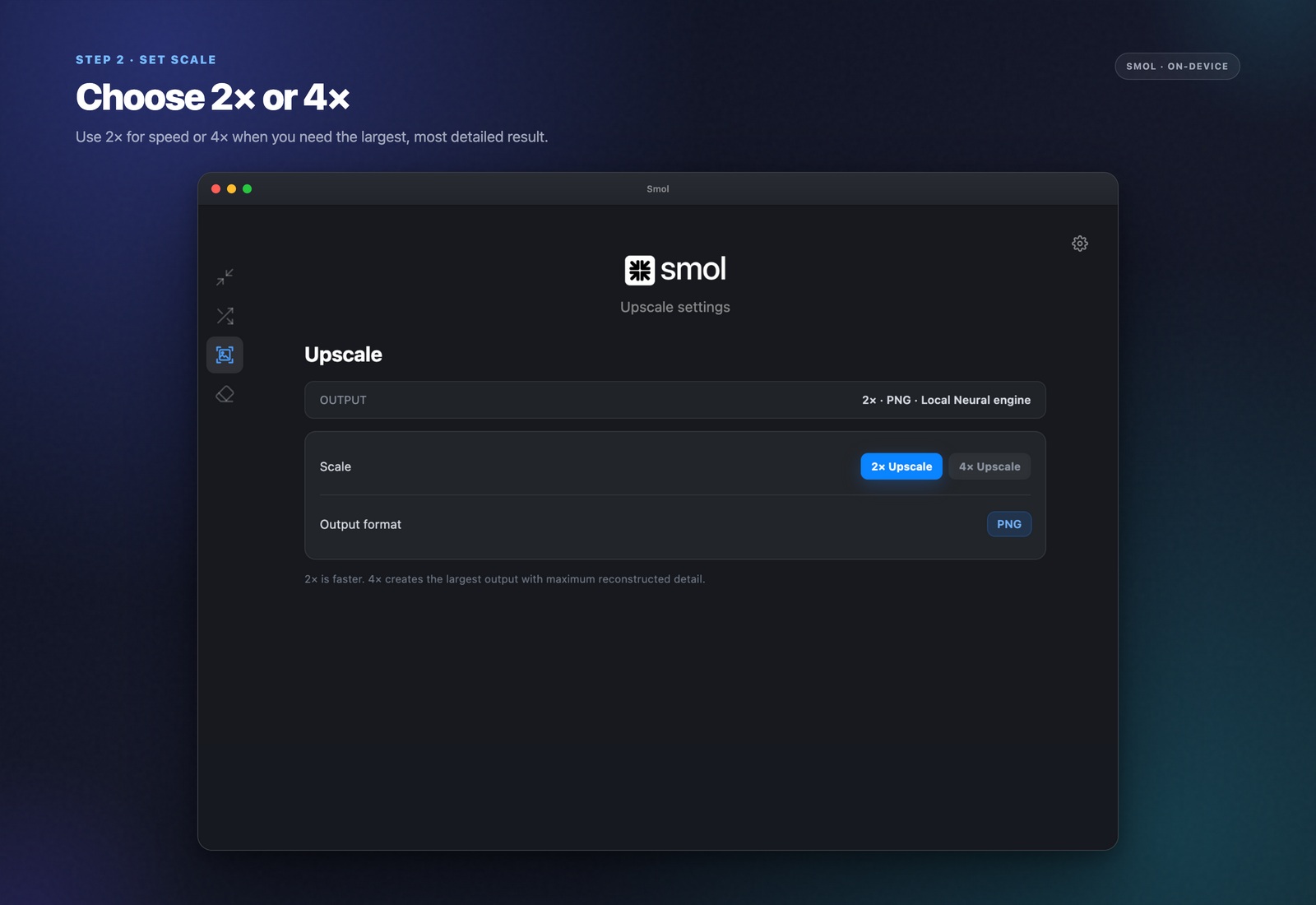
Choose 2x or 4x scale
Select how much larger you want the output — 2x doubles each dimension, 4x quadruples them. Higher scale factors take proportionally longer to process.
Run the upscale
Smol runs the upscaling model entirely on your Mac's own processor — Apple Silicon or Intel — using the native engine available for your hardware. No internet connection, API key, or account is required at any point.
How this differs from a normal resize
Resizing an image up with a standard algorithm (bilinear or bicubic interpolation) works by mathematically averaging existing pixels to fill in new ones — there is no new information, just a smoother-looking stretch, which is why enlarged images typically look soft. AI upscaling uses a model trained on millions of image pairs to infer what detail plausibly belongs in the enlarged version — edges, texture, and fine detail that a simple stretch cannot produce, because it is reconstructing rather than just interpolating.
What upscaling handles well, and its limits
Photos with clear subjects — faces, product shots, landscapes — upscale the most convincingly, since the model has strong priors for what real-world detail looks like. Heavily compressed or very low-resolution source images have a harder ceiling: the model can reconstruct plausible detail, but it cannot recover information that was never captured in the first place. Screenshots of text and very small icons tend to upscale less cleanly than photographic content, since fine text has less tolerance for reconstructed detail.
Why this runs locally instead of through a cloud API
Most AI upscaling tools are cloud services — you upload the image, wait in a queue, and pay per image or per subscription month. Smol's upscaler ships inside the app and runs on your Mac's own GPU/Neural Engine, so there is no upload, no waiting on shared server capacity, and no recurring cost per image. It also means the image never leaves your device, which matters the same way it does for compression when the source photo is not something you want sent to a third-party server.
Frequently asked questions
Does AI upscaling work without an internet connection?
Yes. The upscaling model runs entirely on your Mac's own processor — no internet connection, API key, or account is needed at any point.
How much can I enlarge an image with AI upscaling?
Smol supports 2x and 4x scale factors — doubling or quadrupling each dimension. 4x takes proportionally longer to process than 2x.
Is AI upscaling better than a normal resize?
For enlarging an image, yes — a standard resize stretches existing pixels and looks progressively softer at larger scales, while AI upscaling reconstructs plausible new detail using a trained model, which typically looks noticeably sharper at the same target size.
Does upscaling work on any type of image?
It works best on photographs with clear subjects. Screenshots, small text, and icons tend to upscale less cleanly than photographic content, since there is less tolerance for reconstructed detail in fine text.
Is there a subscription or per-image cost for upscaling?
No. Upscaling is included in Smol's one-time $29 purchase with no per-image charge or subscription — unlike most cloud-based upscaling services that charge per image or per month.
Keep reading